Free · WebGL2 · Runs locally
Browser GPU texture test
Render a repeatable texture workload and observe frame rate, frame timing and estimated texture data size. Use the guides below to compare runs and decide when a native memory test is needed.
Run a controlled texture workload
Start with 4 textures at 1024 × 1024, linear filtering and 30 seconds. Keep this tab visible and leave the settings unchanged when comparing runs.
This tool does not read back and compare memory bytes, count VRAM errors, measure total VRAM capacity, or certify hardware health. Texture memory is a calculated data size, not a measurement of physical memory usage.
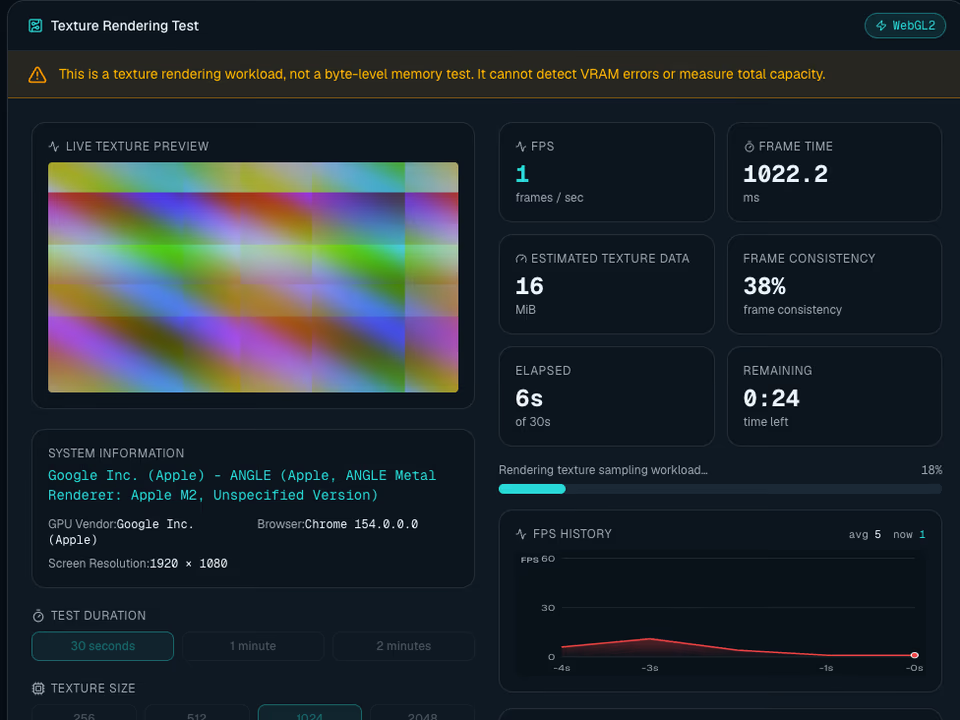
This is a texture rendering workload, not a byte-level memory test. It cannot detect VRAM errors or measure total capacity.
Live Texture Preview
System Information
Detecting…
Test Duration
Texture Size
Texture Count
Filtering
FPS
--
frames / sec
Frame Time
--
ms
Estimated texture data
--
MiB
Frame consistency
--
frame consistency
Elapsed
--
of 30s
Remaining
--
time left
FPS History
Ready to run the texture workload.
Generated RGBA8 textures are sampled in a 640 × 360 canvas. Timing includes browser scheduling. Texture data is calculated as count × size² × 4 bytes, excluding driver overhead. No memory bytes are read back or verified.
More GPU & browser tools
Check your environment, budget texture data and establish a low-load frame timing baseline.
GPU / WebGL report
Find out which graphics capabilities your browser exposes before running a workload.
A browser with WebGL enabled
Check graphics capabilitiesTexture memory calculator
Budget pixel data for textures without allocating large resources on your GPU.
Works without WebGL
Calculate texture memoryBrowser frame-time test
Observe browser frame delivery before comparing it with a GPU texture workload.
Keep this tab visible and focused
Measure browser frame timingStart in your browser
Free Online GPU Texture Test Without Downloads
Run a repeatable graphics workload directly in a WebGL2 browser, with no application installation or account required. The test generates textures on your device and shows how your browser renders them. Start with a short session, confirm the reported renderer, and use the preview as a first look at rendering behavior before investigating a specific GPU problem.
- Start a local WebGL2 workload without installing a separate application.
- Choose a short test before trying a longer rendering session.
- Check the browser-reported renderer before comparing results on your device.
Control the workload
Customize a WebGL2 Texture Test and Estimate Texture Memory
Set the texture count, dimensions, filtering and duration to create a workload you can repeat. Four 1024 × 1024 RGBA8 textures contain 16 MiB of pixel data; doubling both dimensions raises that estimate to 64 MiB. This calculated data size helps describe your settings, while the browser and driver decide where those resources are stored.
- Adjust texture count, dimensions, filtering and test duration independently.
- Four 1024 × 1024 RGBA8 textures contain 16 MiB.
- Estimate pixel data size without confusing it with installed VRAM.

Understand each run
Read GPU Test FPS and Frame Times, Then Export Your Results
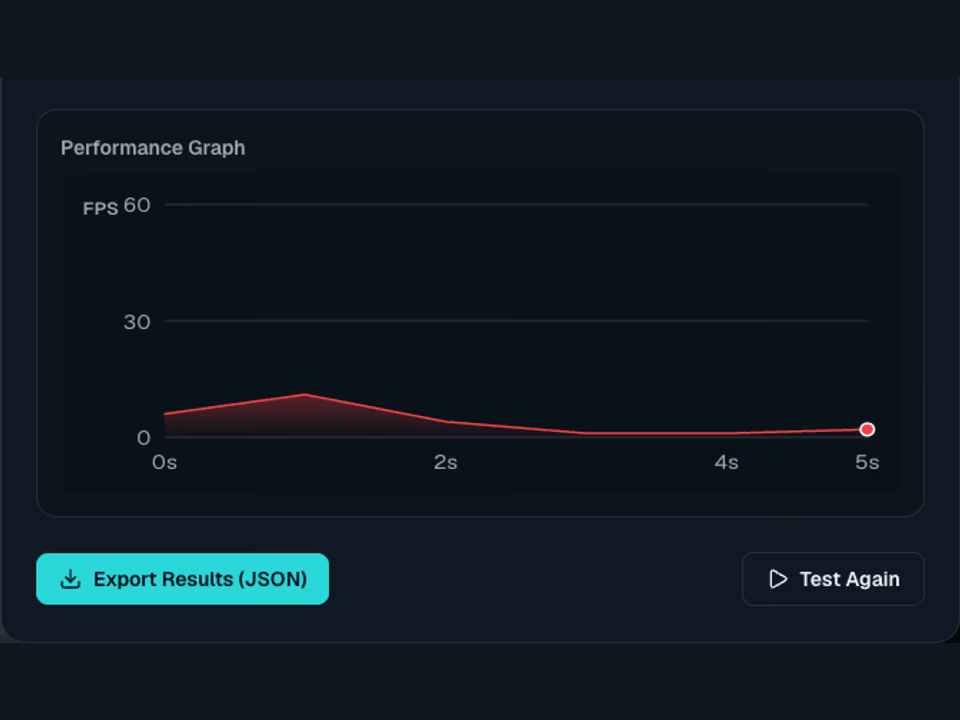
Watch frame rate and frame timing during a run, then save the settings, measurements and browser information in a locally generated JSON report. Compare repeated runs with the same settings to spot changes in rendering behavior. Display refresh rate, power mode and background work can affect the numbers, so record the conditions alongside each result.
- Watch FPS history and frame timing throughout the rendering workload.
- Download settings, measurements and browser information in one JSON report.
- Repeat matching settings three times before changing a single variable.
Plan the next check
How to Check a Used Graphics Card with a Browser Test
Begin a used graphics card check by confirming the browser-reported renderer and observing a short texture workload at normal clock settings. Repeat under matching conditions, then try the game or application you actually need. If you see artifacts, driver resets or crashes, continue with targeted troubleshooting and a native tool that writes and verifies memory data.
- Check that the browser uses the graphics renderer you expect.
- Compare repeated runs while keeping power settings and background work consistent.
- Follow up visible artifacts or crashes with native and application tests.
What you can learn from a run
The preview samples generated RGBA textures in a WebGL2 shader and draws them into a 640 × 360 canvas. Changing texture count, dimensions or filtering changes that workload. You can observe whether the same browser renders it consistently under the same conditions.
A result near 60 FPS often reflects display scheduling rather than the maximum speed of your graphics card. A low result can reflect a busy CPU, power saving, browser throttling, software rendering or a driver problem. Neither a high nor a low FPS result proves that memory cells are healthy or damaged.
Before you press Start
Save your work, return GPU clocks to their normal settings, and close games or renders that would change the workload. Begin with the smallest settings if the system is already unstable. Stop if you see unusual behavior; extending a browser run does not make it a complete memory diagnostic.
- Record browser version, renderer name, texture settings and display refresh rate.
- Keep the tab in the foreground. Do not compare a background run with a visible run.
- Repeat the same settings three times before changing one variable.
- Export the JSON report if you need to compare runs. The download is created locally.
Why this is a first step
Browsers expose graphics capabilities through a driver and a sandbox. They can report an integrated GPU, a translated renderer name or a software renderer rather than the card you intended to test. On systems with shared memory, texture data may use system RAM.
If your real problem is artifacts, driver resets or crashes, follow the troubleshooting guide and reproduce it in the affected application. For memory integrity, use a native utility that actually writes patterns and checks the returned values. Even that tests only the memory and conditions it can access.
Understand your test before judging your GPU
These guides explain the implementation, the meaning of each result, and a practical troubleshooting sequence.
How the texture test works
The actual WebGL2 workload, texture memory calculation, sampling method and limits of the browser test on vramtest.com.
How to interpret your results
Read FPS, frame consistency, texture size and renderer information without mistaking a browser workload for a hardware memory diagnostic.
Troubleshoot WebGL and rendering problems
Separate browser support, software rendering, context loss and driver problems from possible GPU hardware faults.
A practical checklist for a used GPU
Combine identification, a repeatable browser run, native memory verification and a real workload when evaluating a used graphics card.